
On-premises school and university platform
Your campus. Your servers.
The learning and student information platform that schools and universities run on their own server, with one licence per school and a 30-day trial. You control vendor access to your data, and even the AI runs inside your walls.
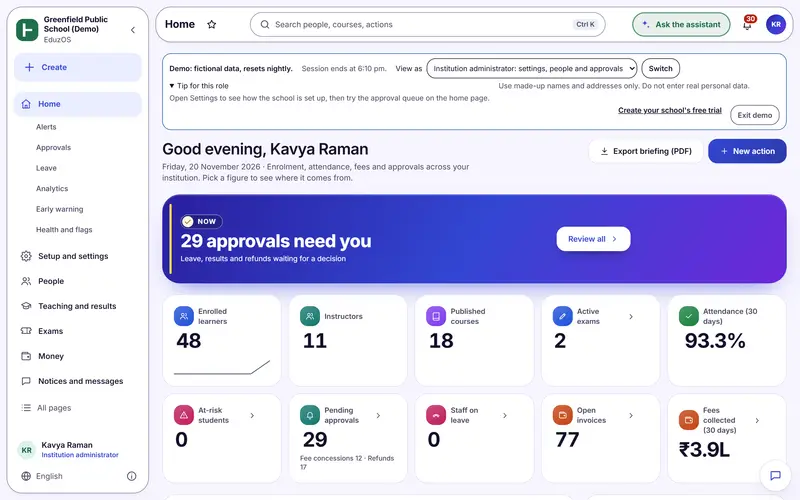
- 01Institution. The head's home: approvals, attendance, fees and alerts.
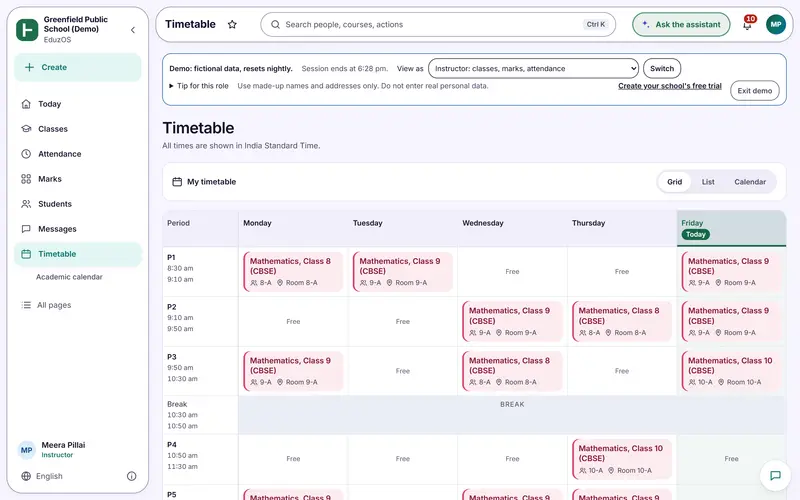
- 02Roles. 13 role workspaces, each with its own part. Here, the timetable week grid.
- 03Record. One record of each person, with a profile of their own. Here, My profile.
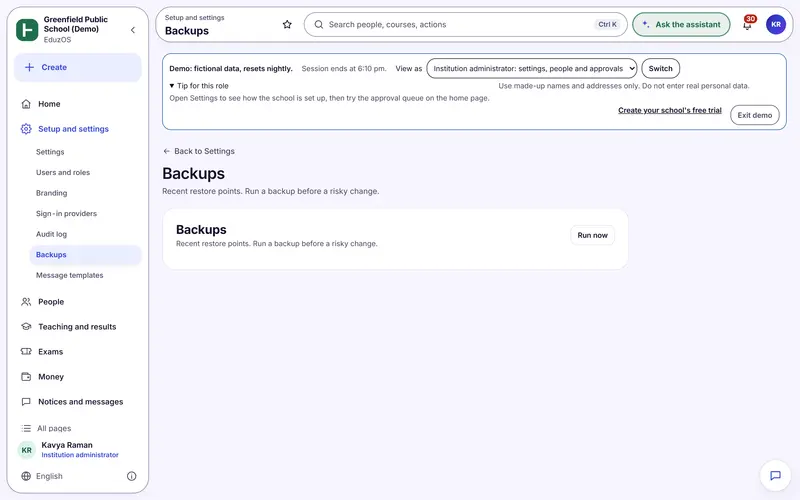
- 04Your server room. Backups and the console, on infrastructure you operate.
FIG 1.1 A conceptual section made of real screens. Greenfield School is fictional.
- 190+screens in the route manifest
- 13role workspaces
- 19feature areas
- 11interface languages, including 2 right-to-left
- 10optional campus modules
One record. Many roles.Inside your walls.
One morning, seen from seven seats.
Pick a role. Each one opens the same school from its own home screen.
Sees what needs a decision
Leave, fee concessions, refunds and payroll runs wait in one queue beside attendance, fees and alerts.

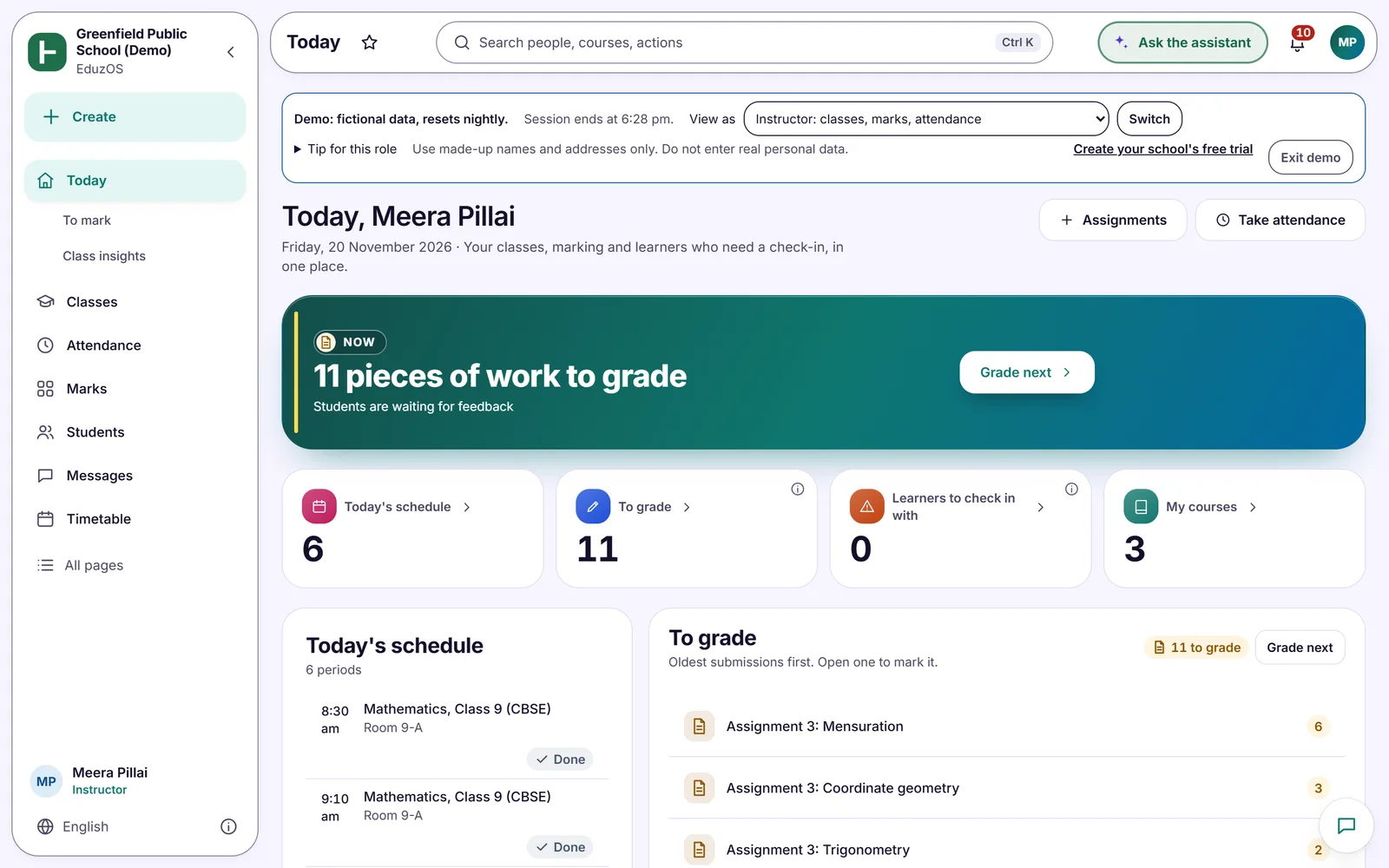
Opens the day's classes
Attendance per session, assignments, a grading queue and the gradebook.
Checks what was billed and collected
Invoices, receipts, concessions, refunds, approvals, ageing and day close.

Follows enrolment and capacity
Enrolment plans, capacity, transfers and transcripts on one student record.

Readies the next session
Halls, sessions, seating, hall tickets, readiness, cases and moderation.

Reviews leave and the payroll run
Staff directory, leave, payroll runs that a different person approves, and payslips.

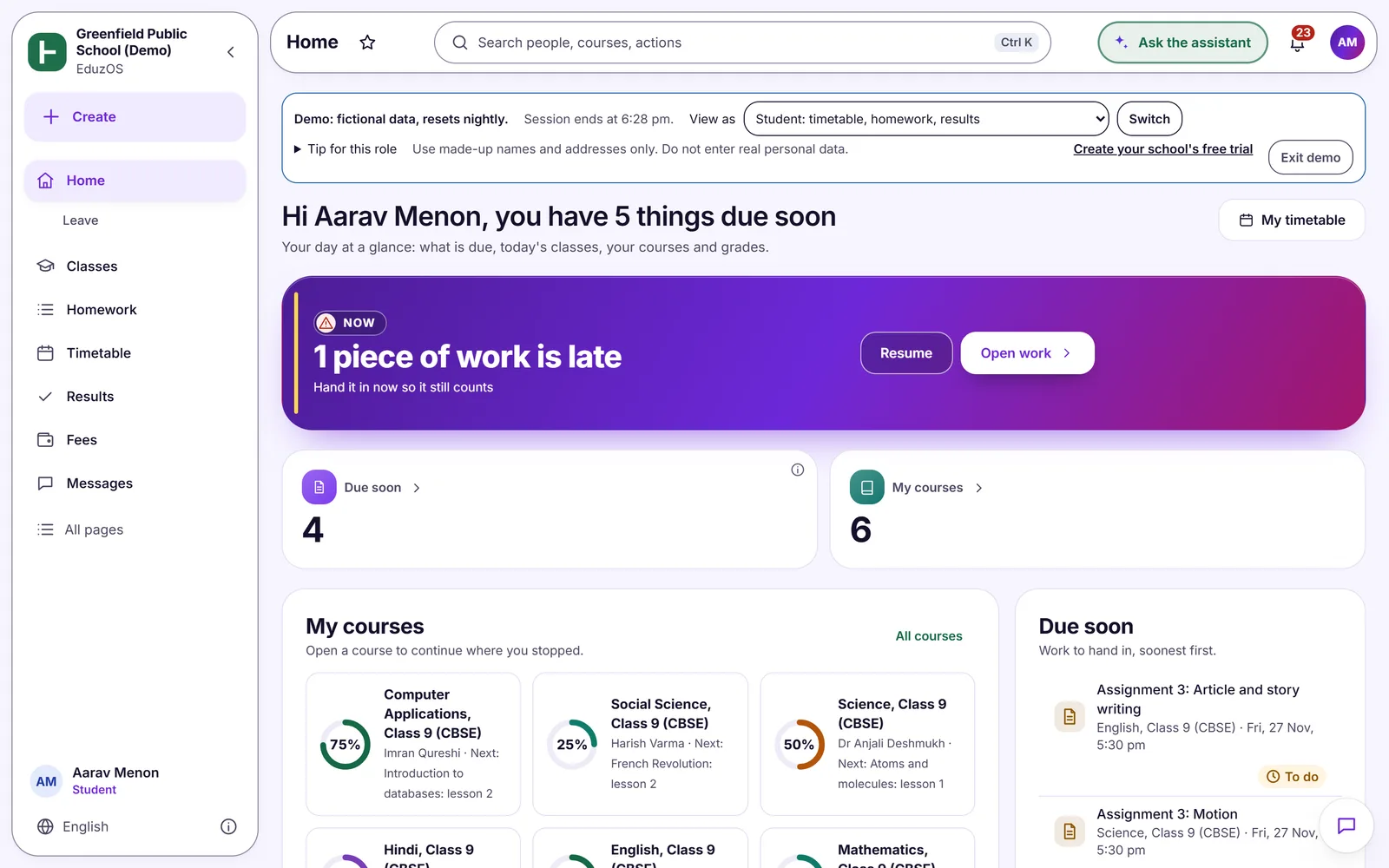
Finds what is due
Courses, assignments, results and timetable on the student home.
Read one screen.
The head's home at Greenfield School, with the four things a head looks for first.
FIG 2.9 Head home. Real product screen; Greenfield School is fictional.
- What needs a decisionLeave, fee concessions and refunds wait in one place.
- Today in figuresEnrolment, attendance, invoices and exams, each opening the list behind it.
- Every campus or oneA campus switch at the top of each screen.
- One menu for the roleEach of the 13 roles sees its own part.
One day at Greenfield School.
Each event is recorded once, and every role sees its own part of the same record. Greenfield School and every figure are fictional.
Bus depot
Route 4 leaves the depot
Transport is one of 10 optional campus modules. The driver signs in and sees one route and its stops, and nothing else in the school.
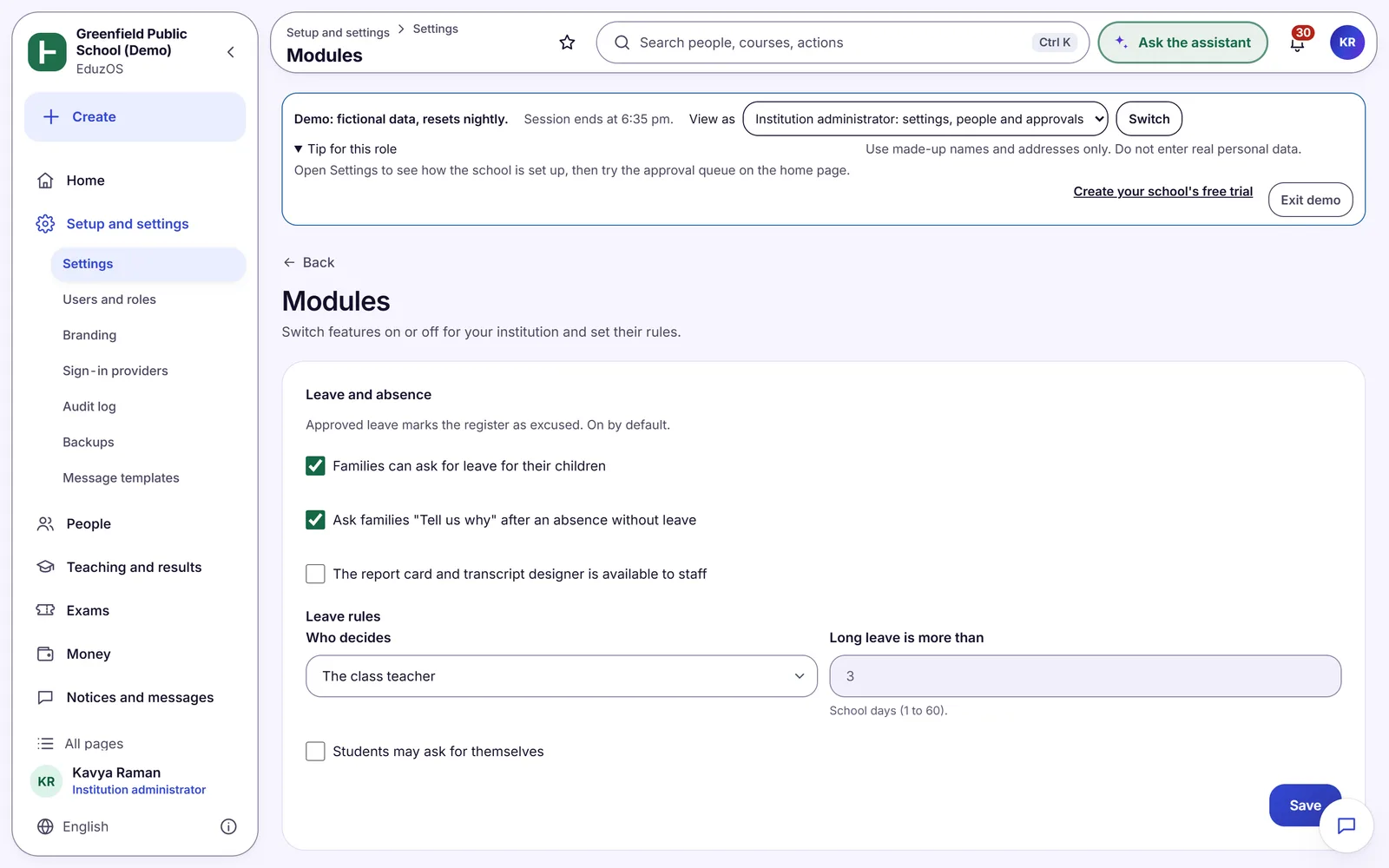
FIG 3.1 Module switchboard: transport is one of ten optional modules. Classroom 7B
Attendance is marked once
The class teacher marks the register for the session. The same record builds the office absent list and tells a parent, in plain words, that their child is in school.
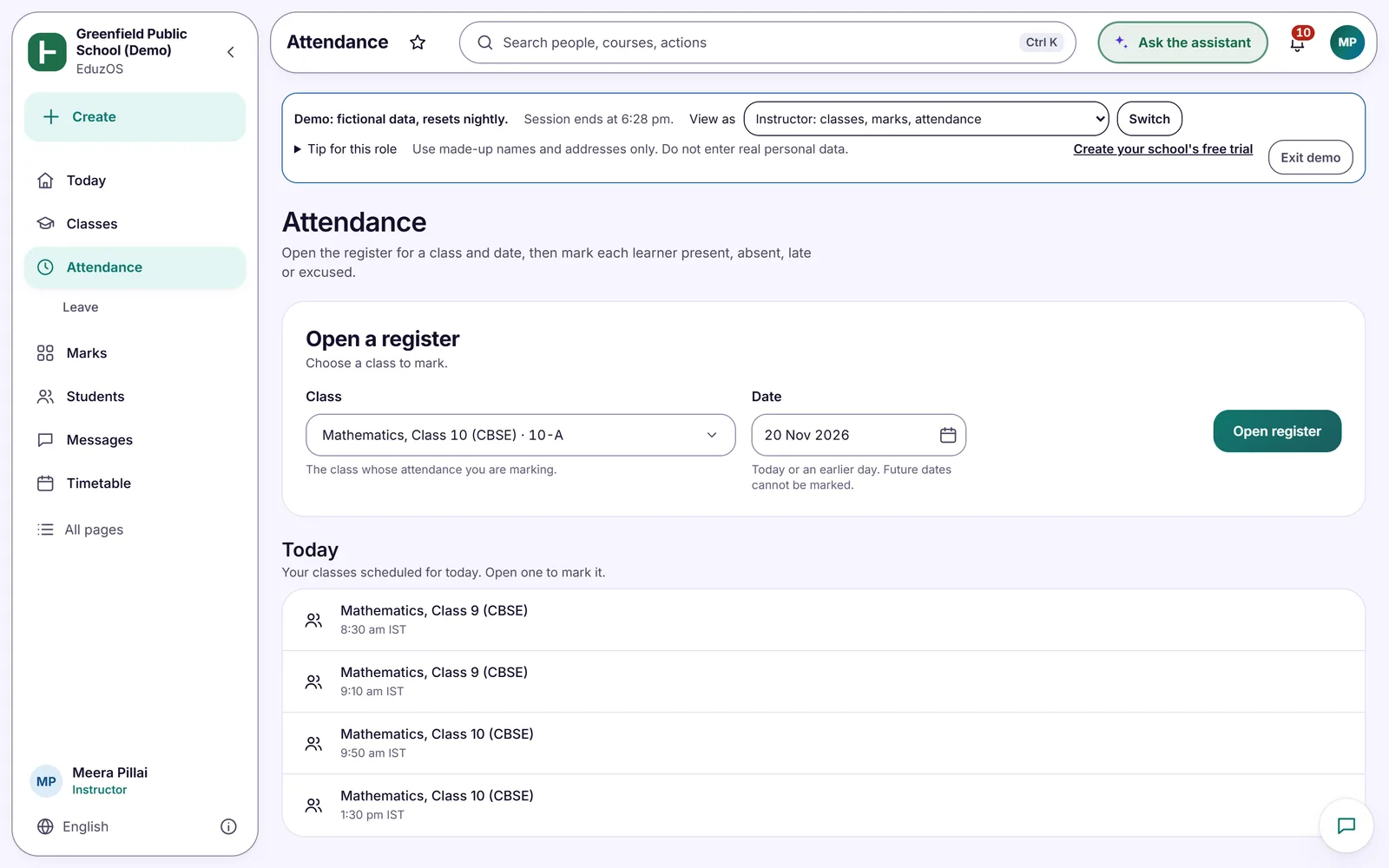
FIG 3.2 Classroom 7B: Attendance, 7B, period 1. Hall 1
An exam starts on time
The exams office plans halls, sessions and seating, issues hall tickets, runs readiness checks and handles cases and moderation. Online exams draw on the question bank, with item analysis afterwards.
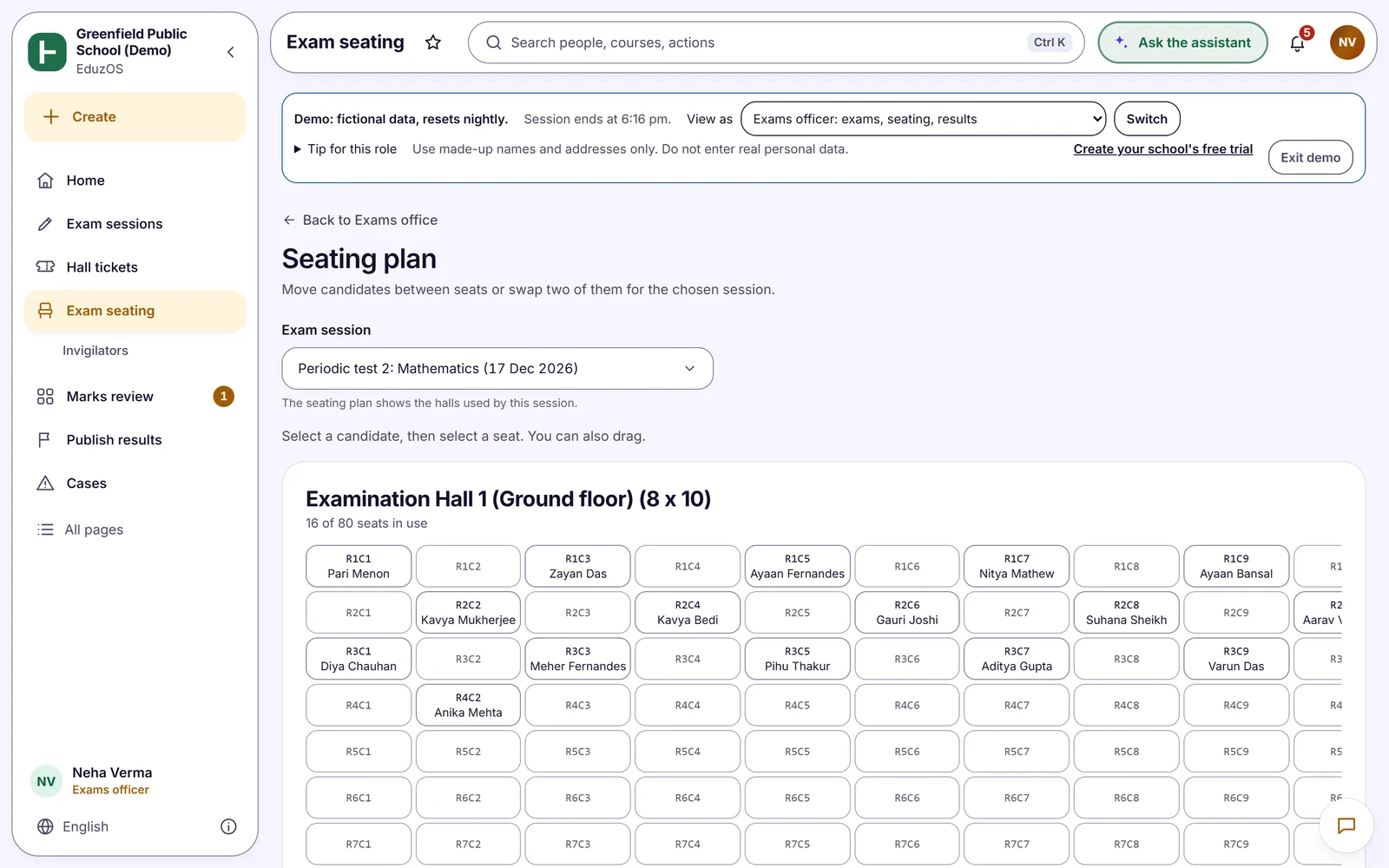
FIG 3.3 Hall 1: Grade 10 Mathematics. Fee counter
A fee is paid and receipted
The cashier takes a payment against an invoice and issues a receipt. The parent finds the same receipt on their fee page, and the finance head sees it in ageing and day close.
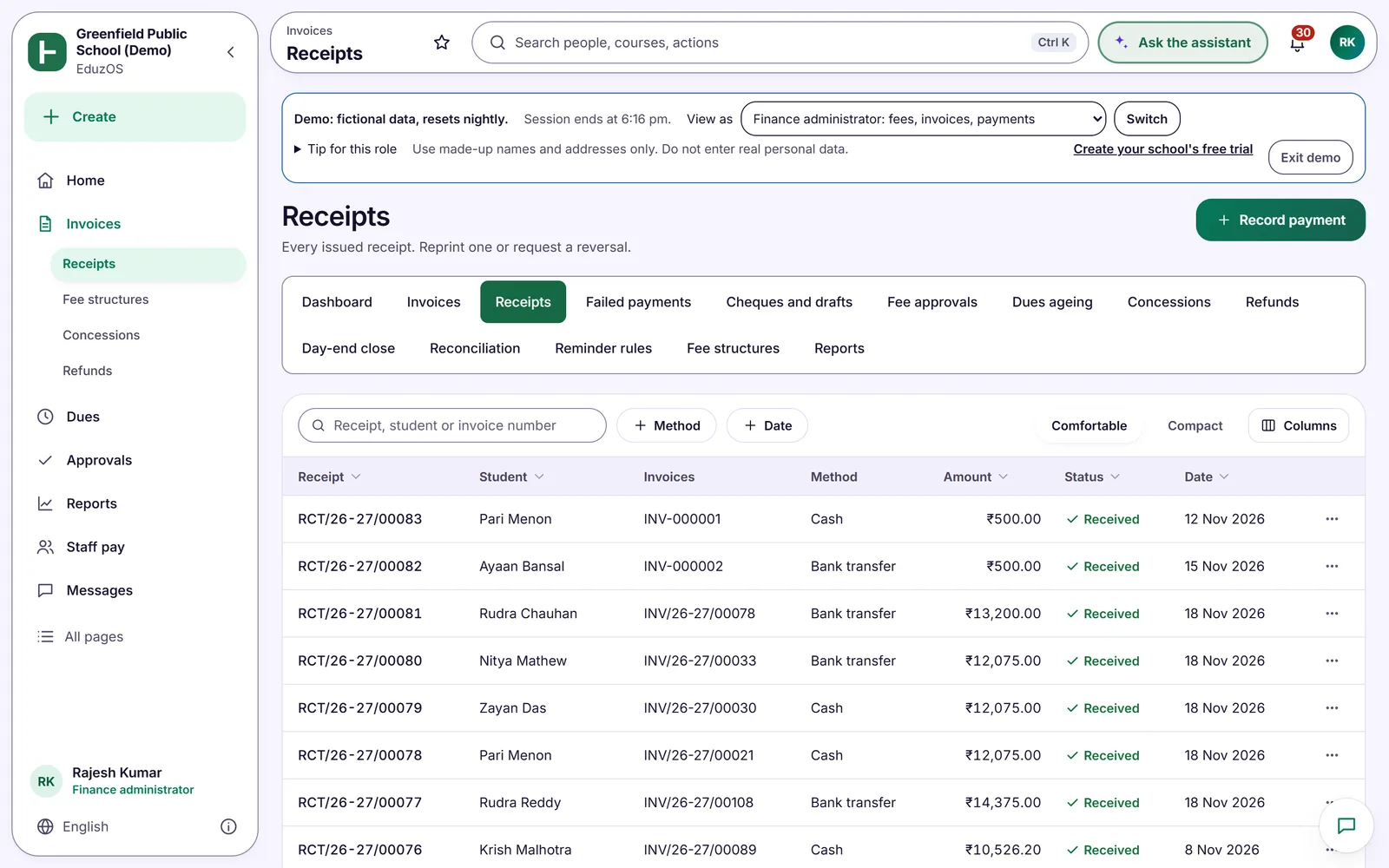
FIG 3.4 Fee counter: Receipt, Term 2 tuition. HR office
Payroll waits for a second person
HR prepares the payroll run. A different person has to approve it before payslips are issued, and sign-in with a second step is enforced for finance and HR changes.
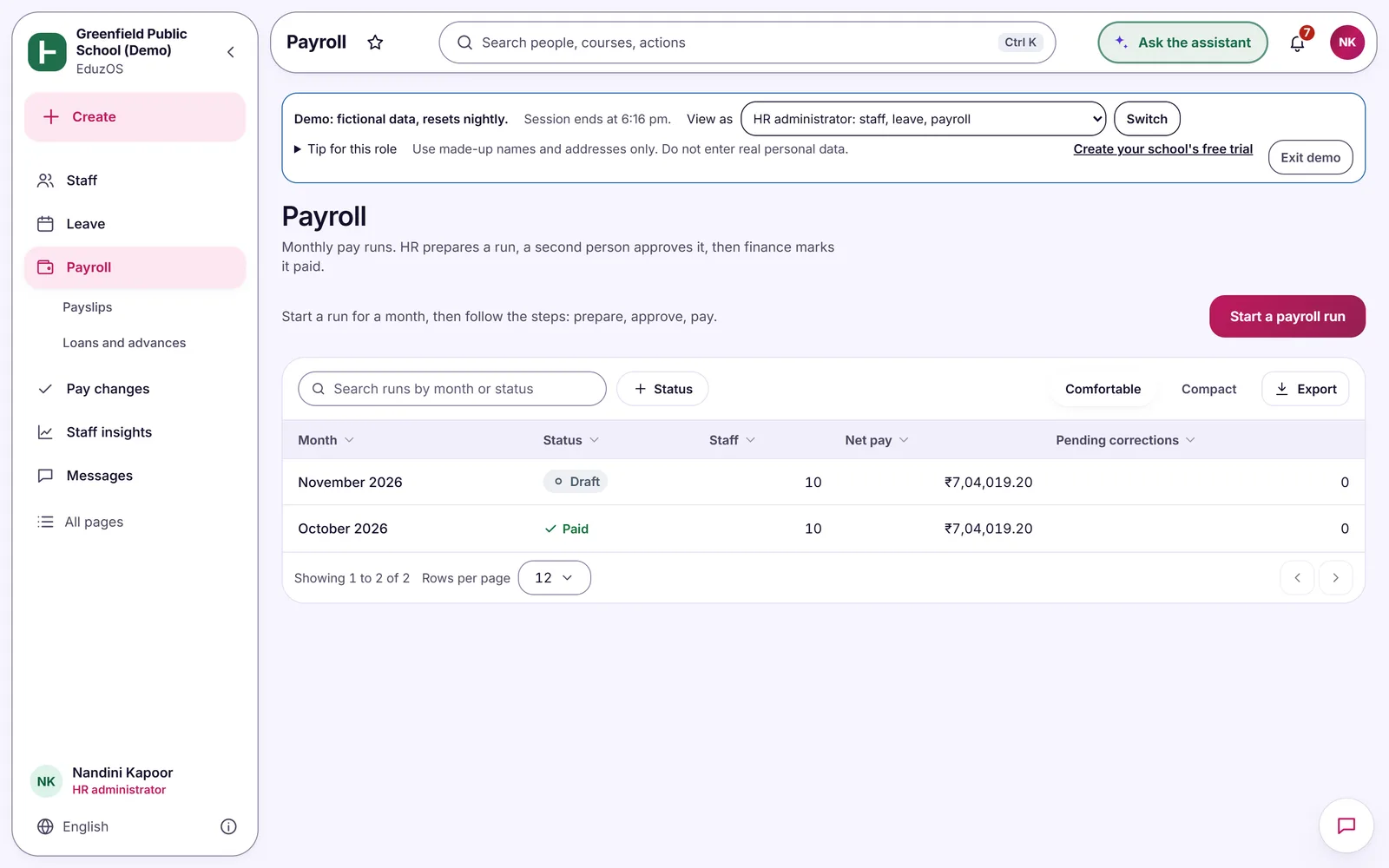
FIG 3.5 HR office: Payroll run, this month. Your server room
The day is backed up on your ground
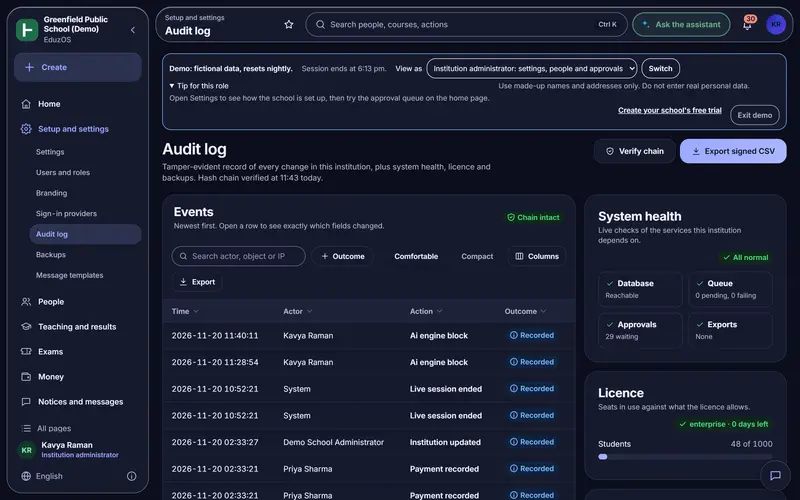
Your operator runs one tool, lmsctl, for backup, restore, upgrade and health checks. Backups are encrypted, a bundle is checked with lmsctl restore --verify <bundle dir>, and sensitive actions of the day are recorded in a hash-chained audit log.
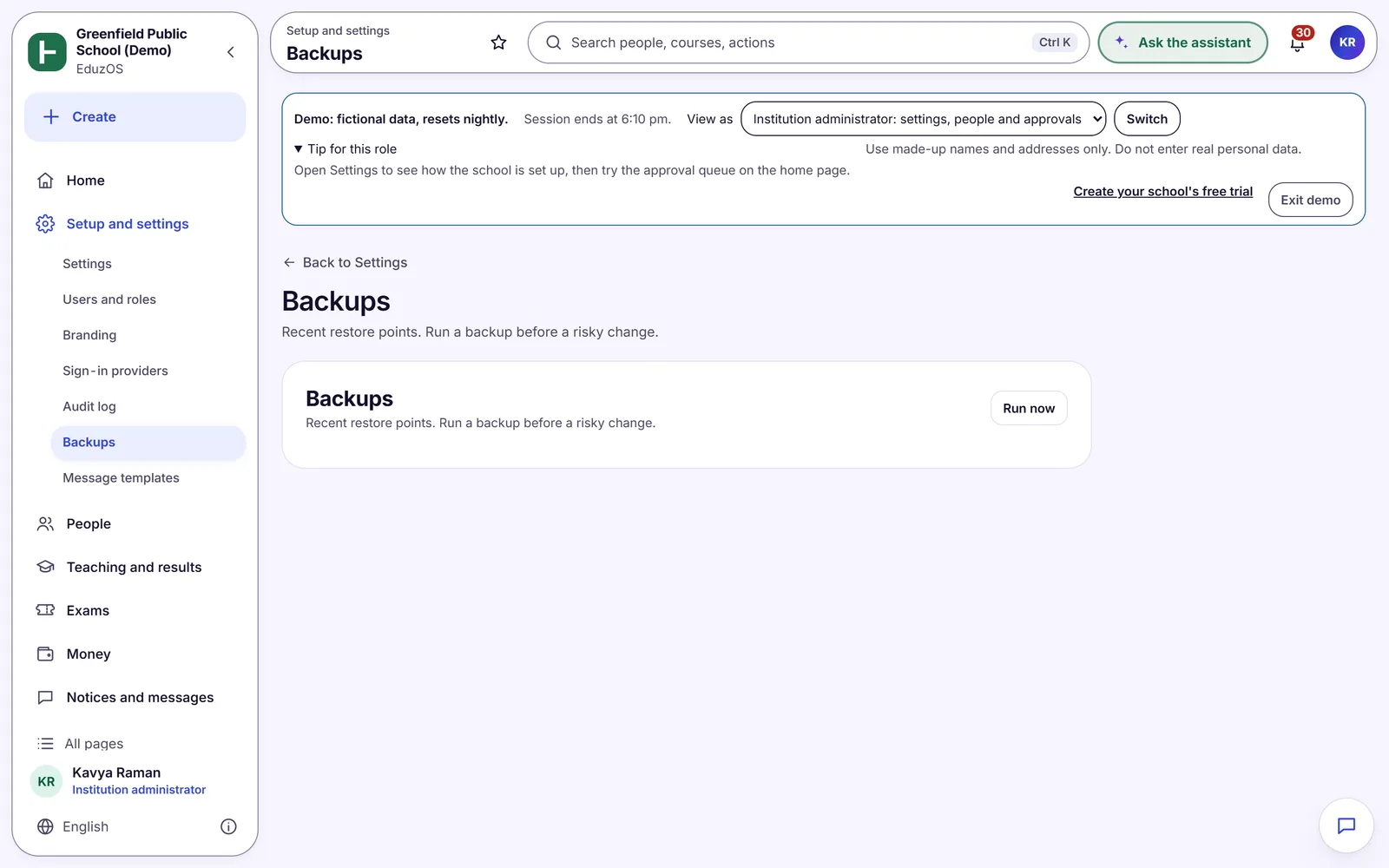
FIG 3.6 Your server room: lmsctl backup.


Walk the campus, room by room.
Nine rooms, real screens in each. Greenfield School is fictional. The small animated props are illustrations, not product screens.
ROOM 01
Head's office
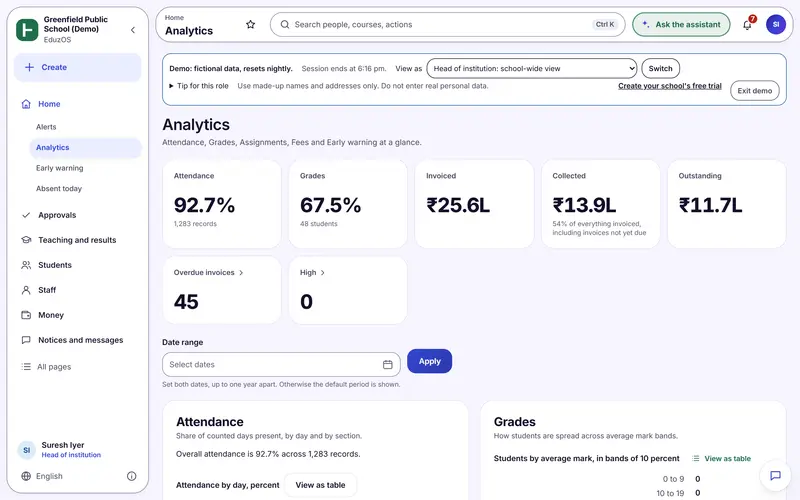
Approvals, attendance, fees and alerts across the institution, on one home screen.
For the head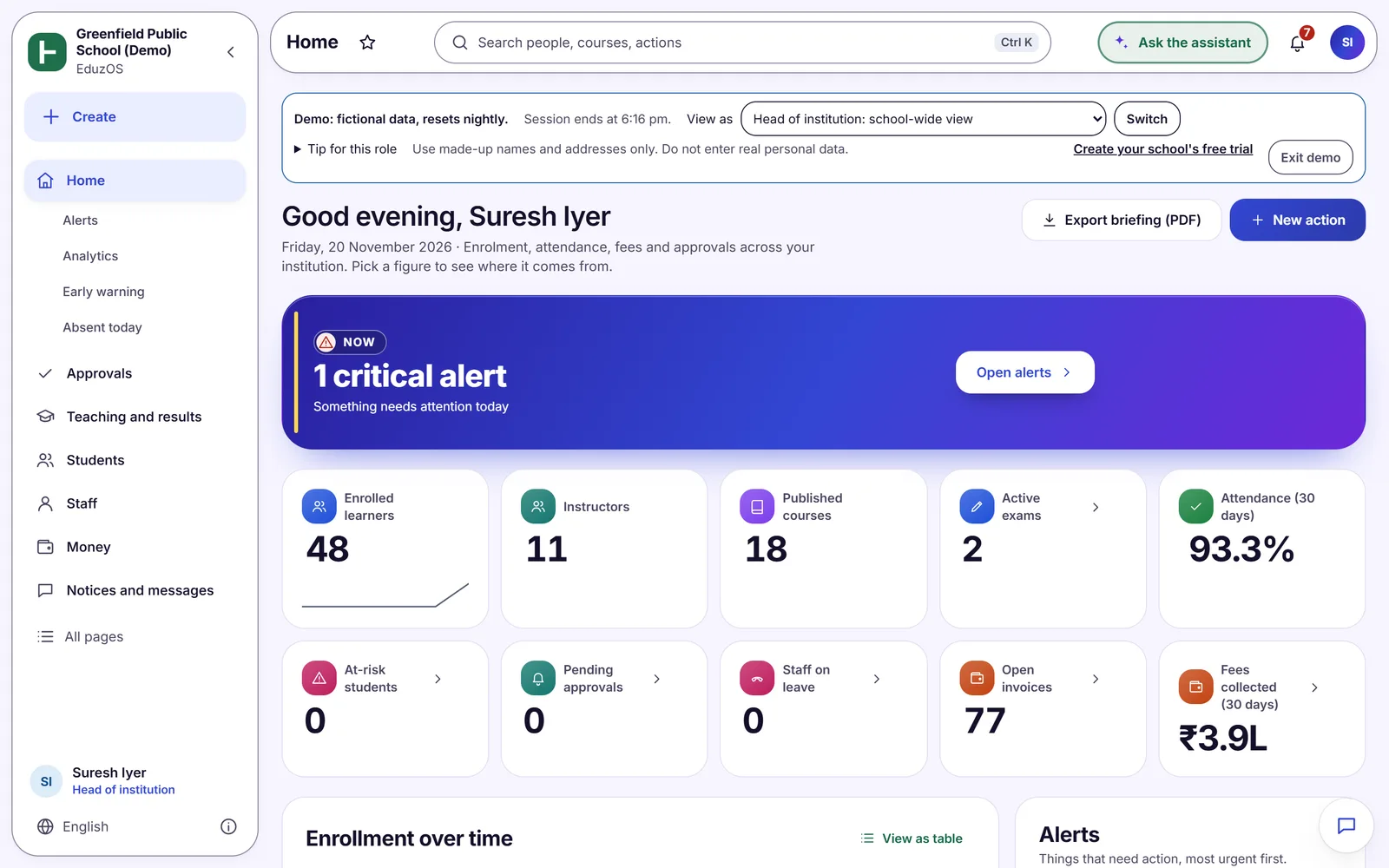
ROOM 02
Classroom
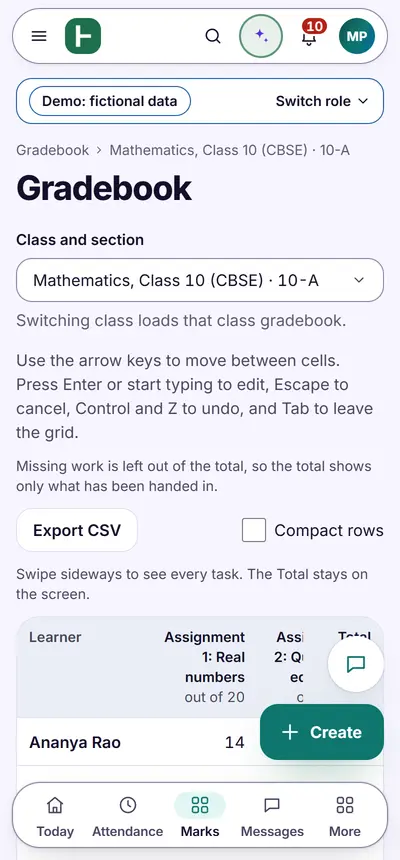
Attendance per session, assignments, a grading queue and the gradebook.
Teaching and learning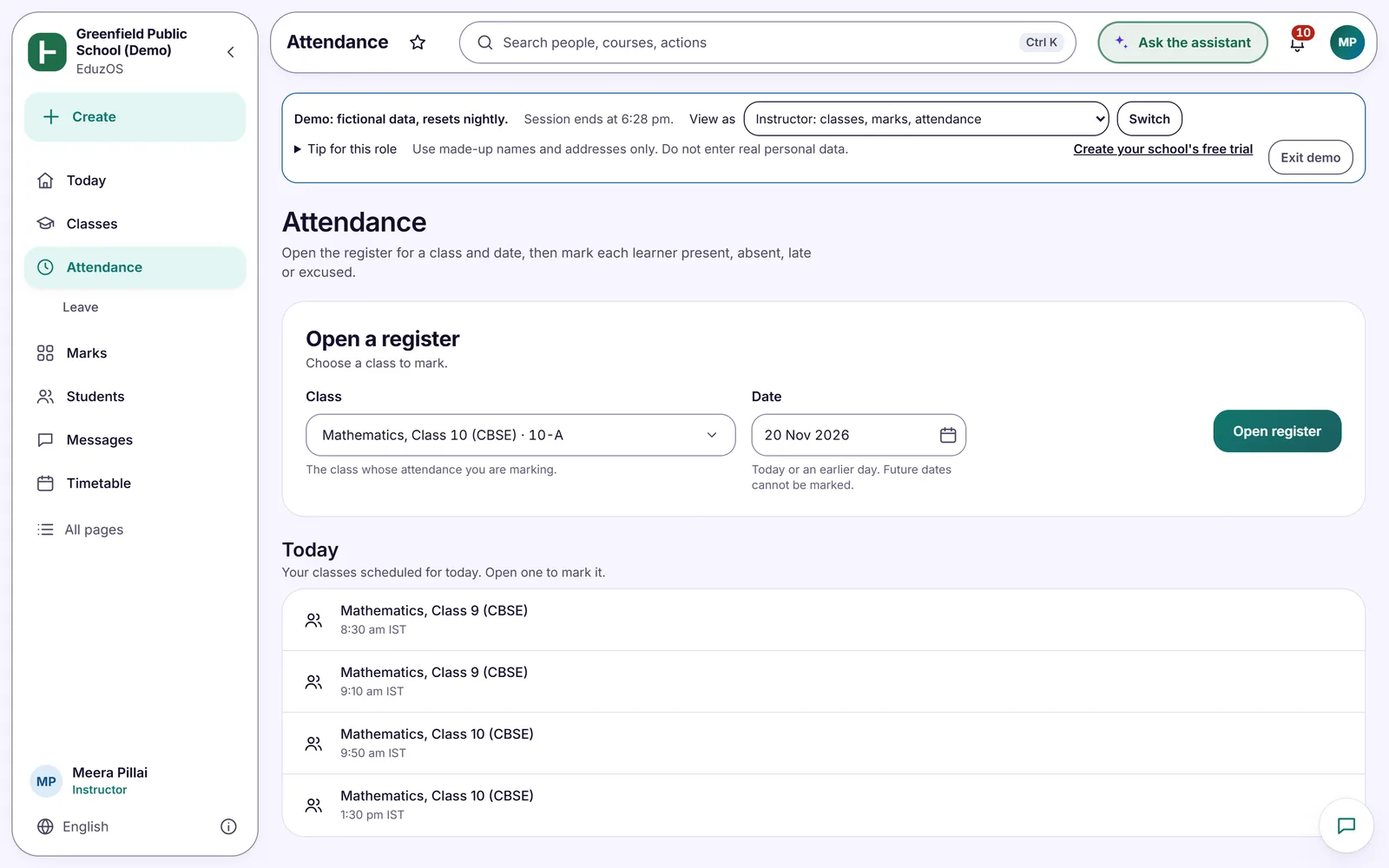
ROOM 03
Exam hall
Halls, sessions, seating, hall tickets, readiness, cases and moderation.
Exams office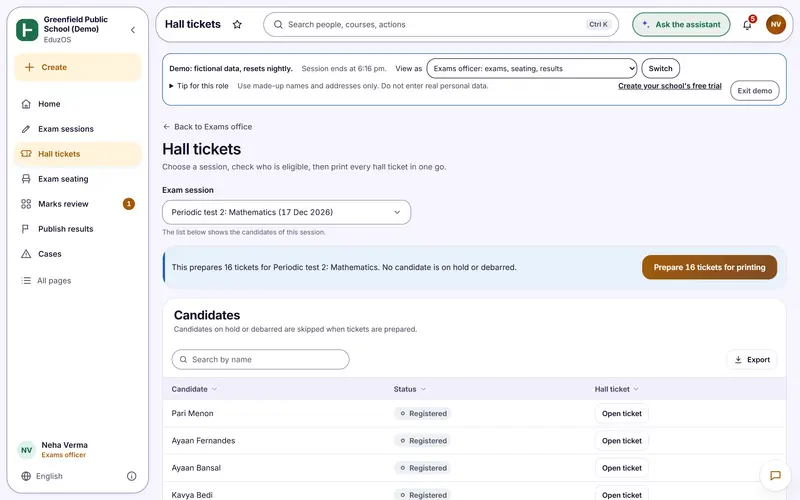
ROOM 04
Fee counter
Invoices, receipts, concessions, refunds, approvals and day close. The parent sees the same receipt.
Fees and finance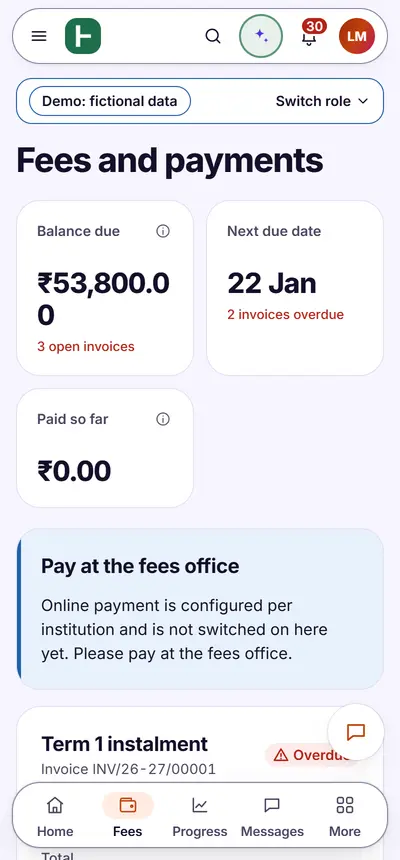
ROOM 05
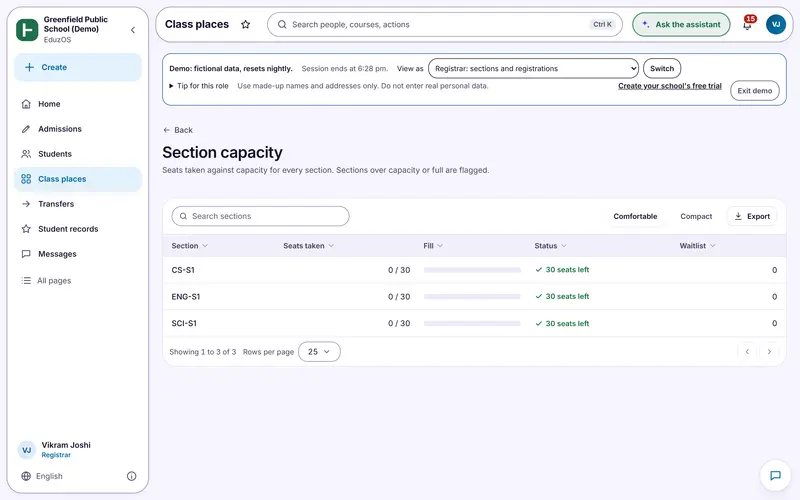
Registry
An admissions pipeline, enrolment, capacity, transfers and transcripts on one student record.
Admissions and records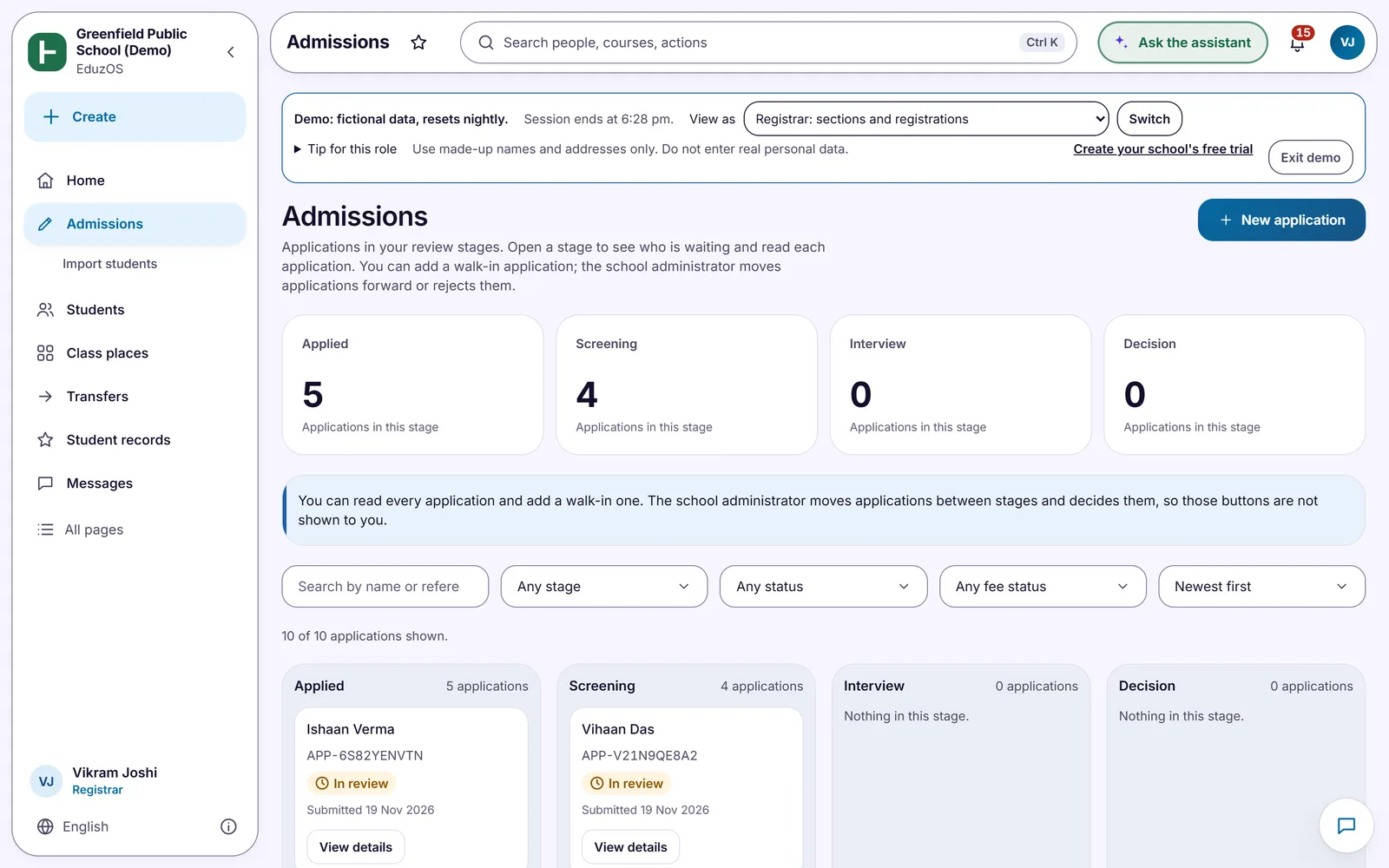
ROOM 06
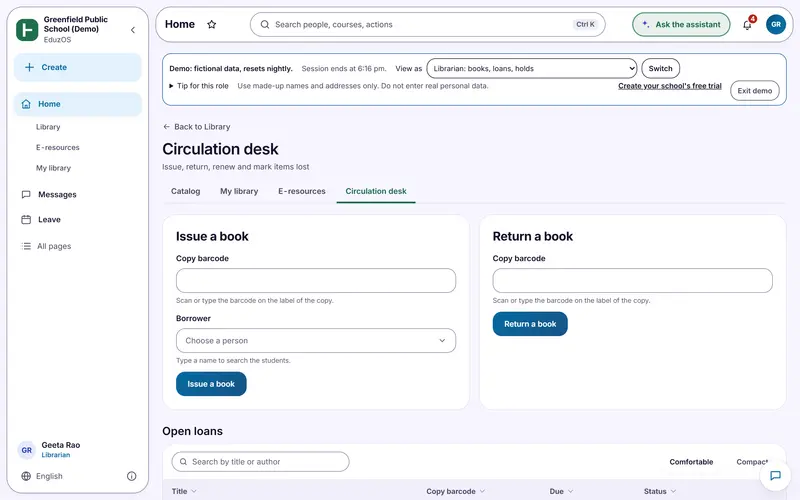
Library
One of ten optional campus modules you switch on: library, transport, hostel and more.
Campus modules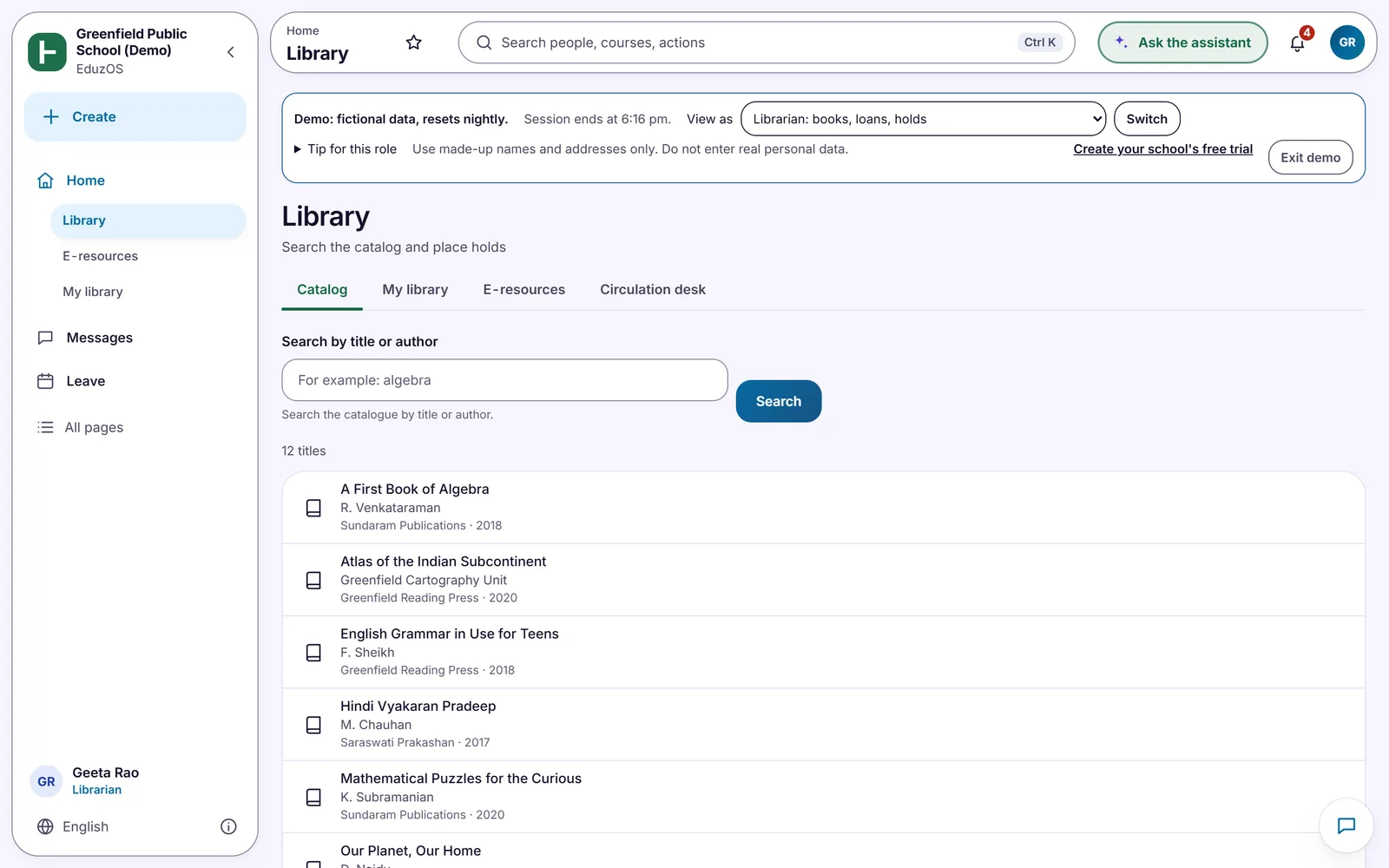
ROOM 07
Front gate
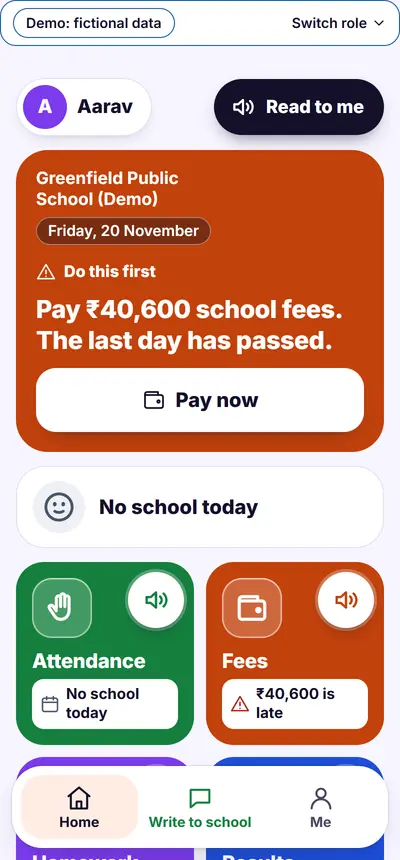
Family Mode gives a parent one account, one next step, and attendance and homework in plain words.
Family Mode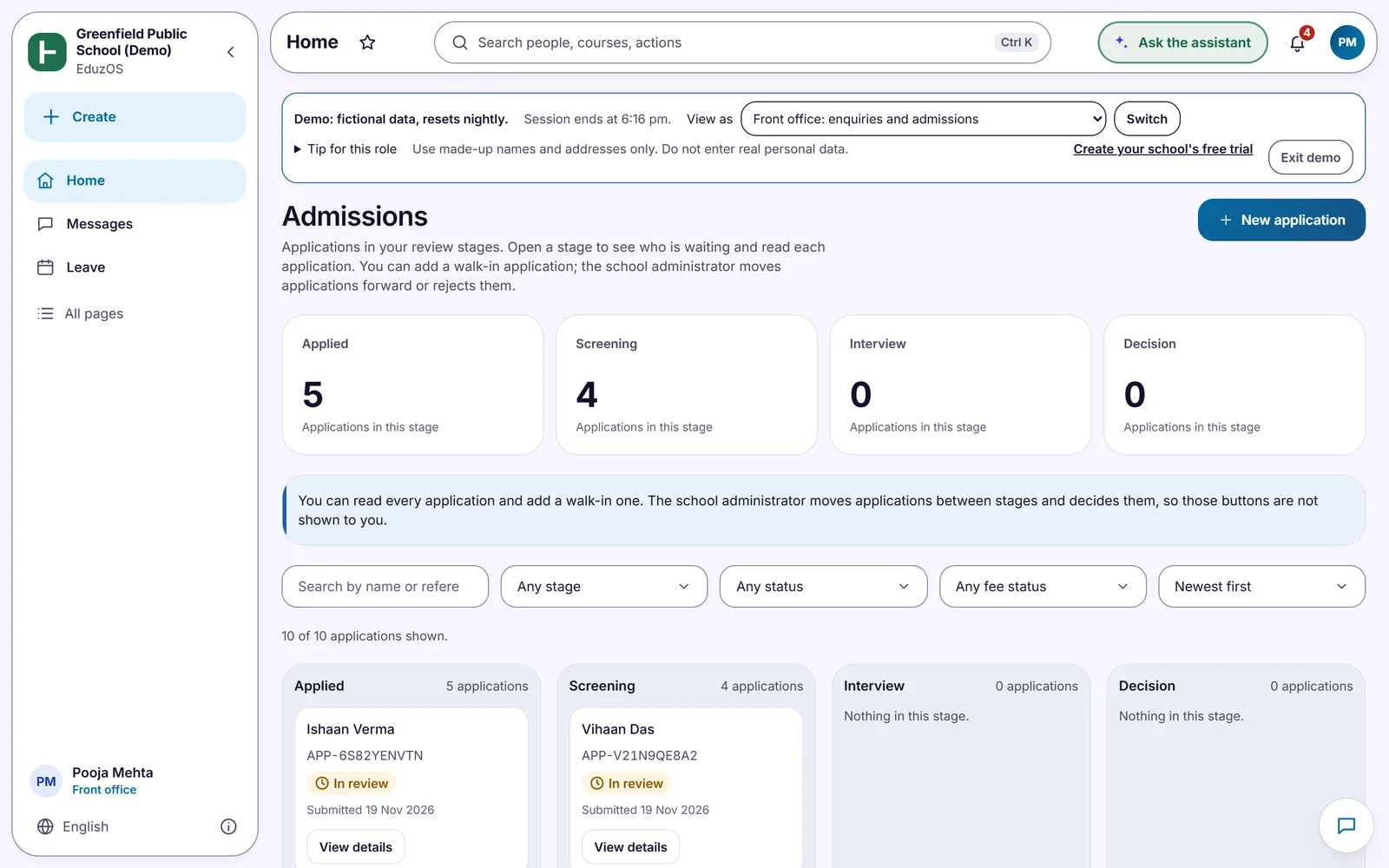
ROOM 08
Staff room
Staff directory, leave, payroll runs that a different person approves, and payslips.
HR and payroll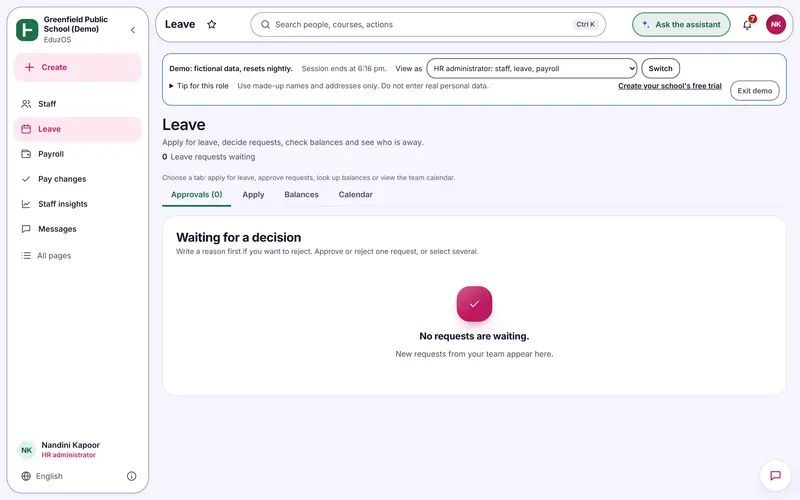
ROOM 09
Your server room
Runs on infrastructure you operate. You control vendor access to your data.
Security and architecture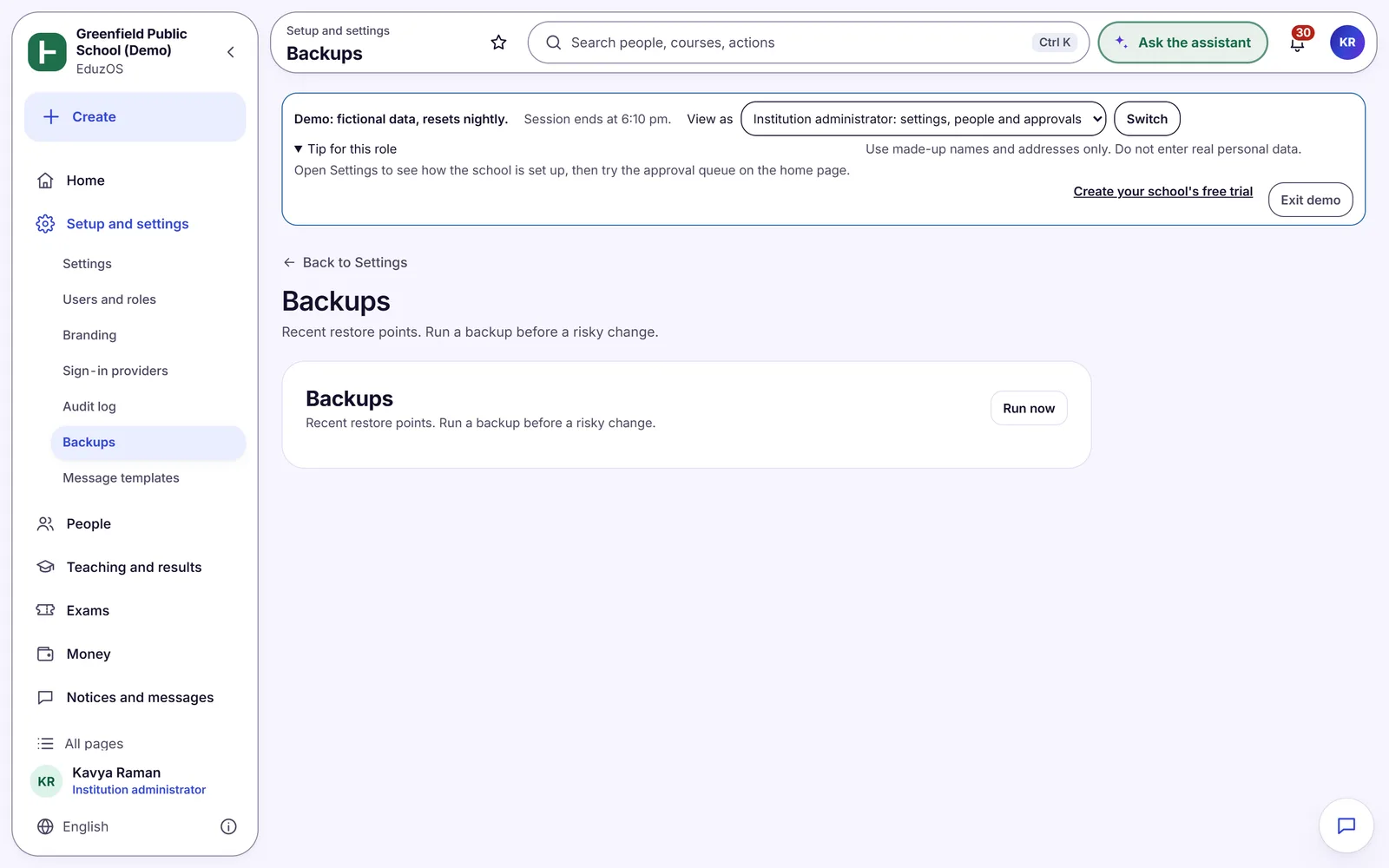


Watch a decision happen.
The head opens the approvals queue, confirms a request and moves on. Scroll to play the real screens.
01 / 09 Approvals queue, 12 pending
See all four sequences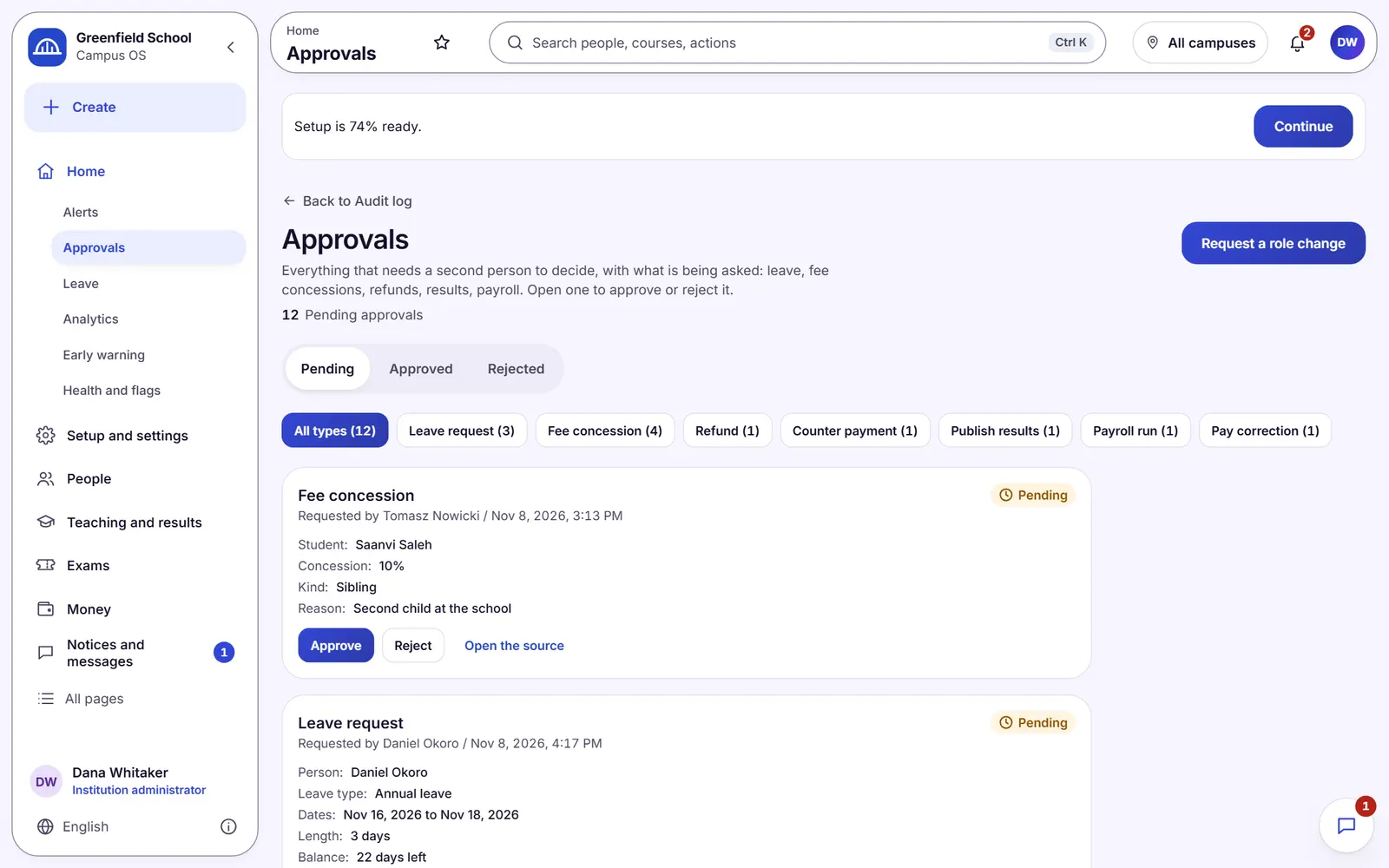
Make it yours: language, colour, mode.
Switch the language to Arabic and the layout mirrors. Pick a Theme Studio preset and the whole product follows. Each tab is a real screen. Languages other than English are machine-translated and pending native review.


Family Mode: a plain parent view.
One account for the family, a switcher between children, one clear next step, and attendance and homework in plain words.
- Arabic and Urdu flip the whole screen right to left.
- Available in 11 languages. English is the source; the other 10 are machine-translated and pending native review.
- Fee pages show what is due and every receipt.


You hold the gate key.
EduzOS installs on your infrastructure, so you control vendor access to your data.
- Row level security is forced on every tenant table, and the runtime database role cannot bypass it.
- Sensitive fields are encrypted per institution with AES-256-GCM.
- Two-step sign-in is enforced for administrator, head, finance and HR changes, and sensitive role grants need two people (a new installation with one administrator is the one bootstrap exception).
- Sensitive actions are recorded in a hash-chained audit log.

- 01Sign-inKeycloak sign-in by institution code, with a second step for sensitive roles.
- 02EduzOS web and APINestJS 11 on Node 22.
- 03Postgres 17Row level security forced on every tenant table.
- 04Your server roomCompose or Helm deployment files, on infrastructure you operate.
Everything inside
One platform, from first day to alumni.
Install, claim, set up and run. Then careers, alumni, outcomes and an AI that stays in your school.
Setup wizard
Eight guided steps from empty install to go-live.
See the screens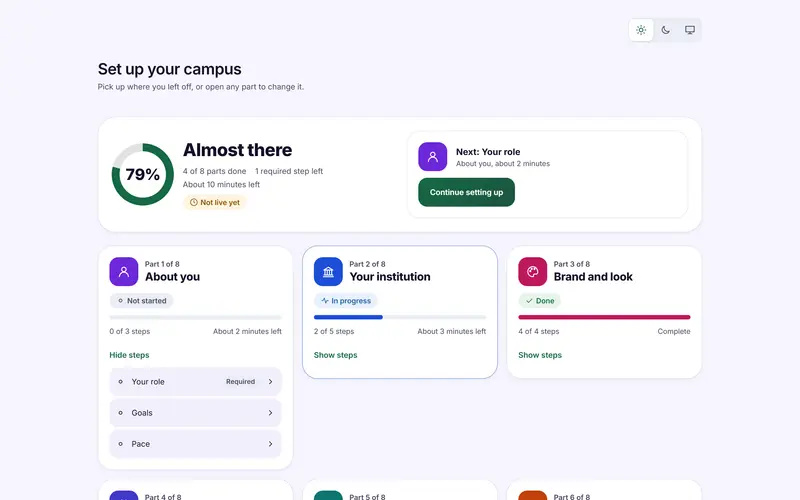
Careers and placement
Drives, eligibility, applications, offers, and a recruiter view.
See the screensAlumni
Directory, mentoring, events and groups.
See the screensOutcomes and accreditation
Frameworks, attainment, evidence and accreditation cycles.
See the screensRole workspaces
13 role workspaces and an audited View as role.
See the screens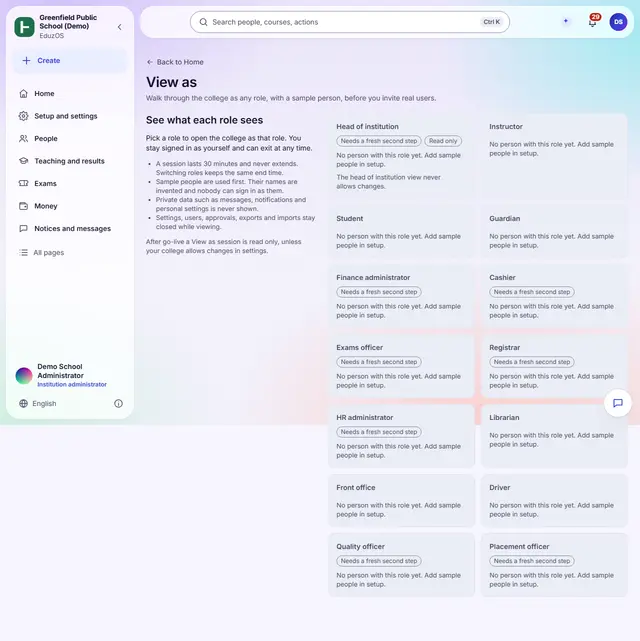
AI Core Engine
Cited answers that run inside your deployment.
See the screens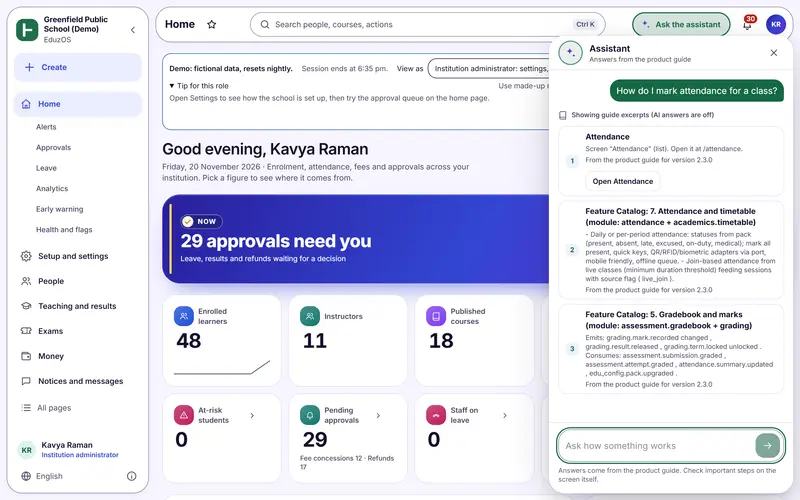
My profile
Photo, preferences, sessions and privacy shortcuts.
See the screens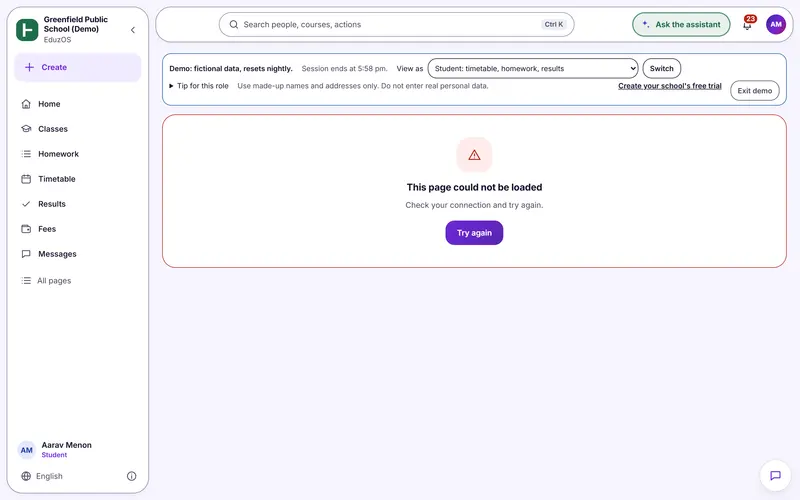
Installable app
Install from the browser, offline pages, lite mode.
See the screens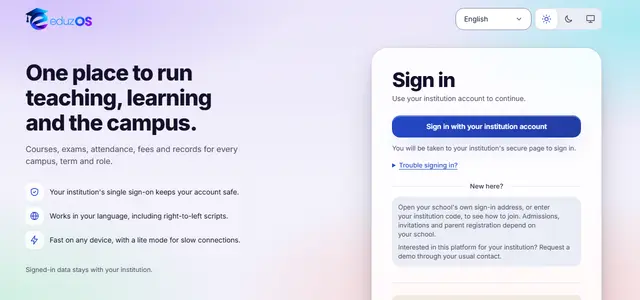
Questions buyers ask first.
Where does our data live?
On infrastructure you run. EduzOS is on-premises-first, and you control vendor access to your data.
Which languages does it speak?
It is available in 11 interface languages, including Arabic and Urdu right to left. English is the source language; the other 10 are machine-translated and pending native review.
Will it fit our board and country?
Education packs ship for India, the United Kingdom, the United States, the United Arab Emirates and Singapore, plus IB and Cambridge systems, with expert review pending. The state-first board picker is shipped for India only.
Can we run it on our own server?
Yes. EduzOS installs on a server you operate, with one licence per school and a 30-day trial. Your operator uses one tool, lmsctl, to install, back up, restore and upgrade.
How does licensing and the trial work?
Each school has its own signed licence, checked offline. A new install runs the full product for 30 days. If a licence lapses, reading, data export, attendance and messaging keep working. We discuss terms with you in a demo.
Does the AI send our data anywhere?
No. The AI Core Engine runs fully inside the school's own deployment, with no third-party AI service. Answers are retrieval-first with cited sources, and an optional local model can run on your hardware. It is off until the school switches it on.
Who owns our data?
You do. It lives on infrastructure you run, you control vendor access, and a data export stays available even in limited mode.
How often is EduzOS updated?
EduzOS is under continuous development. Upgrades arrive through the same upgrade and rollback tooling, so you stay current without reinstalling. See Always improving.
What does our IT team run?
Postgres 17, NestJS 11 and Node 22, with one operator tool, lmsctl. For example: lmsctl preflight --host <name>, lmsctl install --host <name> --version <x.y.z>, lmsctl backup, lmsctl restore --verify <bundle dir>, lmsctl upgrade --to <x.y.z>.
How do we see it?
Ask for a live demo. We walk you through the product on fictional demo data, with the education pack closest to yours.
See it on demo data.
Tell us about your institution and we will arrange a guided walkthrough on demo data, with the education pack closest to yours, then talk through deployment on your infrastructure.